
Capcut Compress Problem Solved
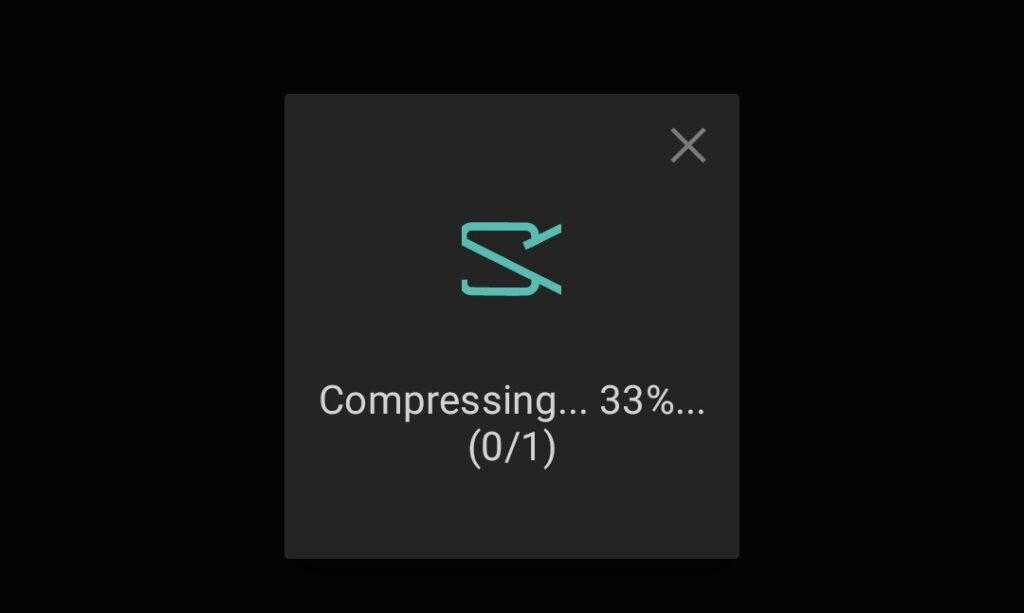
If you edit videos on CapCut, you’ve probably seen that frustrating popup that says: “Automatically compress to 1080p for imported video higher than 1080p.”
It usually appears when you try to import a high-resolution video, like 2K, 4K, or 60 fps clips. CapCut then begins “compressing” the video before you can start editing, showing a message like Compressing… 57% (0/1).
For short clips, it might not take long, but for bigger videos, the app can get stuck for several minutes – or even crash midway. The worst part? Once the compression finishes, your video loses some quality and sharpness.
If you’ve been through this, don’t worry — you’re not alone. Many creators face this problem, and the good news is, there’s a simple and 100 % working solution that fixes it permanently. I’ve personally tested it on my own projects and shared it on my YouTube channel – Anil Monitor.
Let’s go through everything step-by-step and understand the reason, the fix, and a few pro tips to make your CapCut editing faster and smoother.
Why CapCut Automatically Compresses Videos
Before jumping to the solution, it’s good to know why this happens.
CapCut is designed to handle projects efficiently on all kinds of phones — from mid-range Androids to flagship devices. When you import a video higher than 1080p (for example, 1440p or 4K), the app automatically compresses it down to 1080p resolution.
CapCut developers do this for three main reasons:
Performance stability – Editing 4K videos can cause lag or crashes on many devices.Storage optimization – 4K clips are heavy. Compressing to 1080p saves space on your phone.
Export compatibility – Most social platforms like Instagram Reels, YouTube Shorts, and TikTok prefer 1080p as the standard output. While that logic makes sense, it’s annoying for users who want to keep the original video quality or simply don’t want to wait through a long compression process before editing.
The Real-World Problem – Capcut Compress
Let’s picture this:
You record a 4K clip of your gameplay, vlog, or cinematic scene. You open CapCut, tap on New Project, select your video, and then—boom!
A popup appears saying: Automatically compress to 1080p for imported video higher than 1080p.
Then it starts Compressing (0/1)… 57%… and you’re stuck waiting.
You can’t edit until it finishes, and the larger the video, the longer it takes. Some users even report waiting 10–20 minutes for a single clip to load!
And after all that time, you end up with a compressed, lower-quality version of your footage. So, how do we stop CapCut from doing this? The solution is surprisingly simple — and it works perfectly every time.
Capcut Compress Solution – 100% working
Here’s the fix that completely avoids CapCut’s automatic compression.
Follow these steps carefully:
- Open the CapCut app on your phone.
- On the home screen, tap the Camera icon (the same one you use for recording video directly in CapCut).
- Inside the camera interface, look for an option called Album — usually at the bottom or in the gallery section.
- Tap on Album and browse your phone’s video library.
- Select the video you want to edit (even if it’s 2K or 4K).
- CapCut will import the video instantly, without showing any compression popup.
That’s it. Your video will open directly in the editor, keeping the original resolution and quality, and you won’t have to wait through that long compression step again.
Watch Video Tutorial (Step-by-Step)
Sometimes it’s easier to watch it once rather than reading the steps.
Here’s the full demonstration on my YouTube channel, Anil Monitor, where I show exactly how to do it in real time.
Why This Solution Works
CapCut behaves differently when you open videos through the Camera → Album path.
Here’s what’s happening behind the scenes:
When you import a video from “New Project”, CapCut treats it like an external file and checks its resolution. If it’s higher than 1080p, the app triggers its internal compression system.
But when you open it via Camera → Album, the app assumes you’re importing a file recorded within CapCut or your device’s camera — not an external high-res file. That’s why it skips the compression process entirely.
Additional Tips to Avoid Lag and Quality Loss
Even after fixing the compression issue, it’s smart to optimize CapCut for better performance. Here are some tried-and-tested tips:
- Use the Latest Version of CapCut
- Keep Enough Storage Space
- Turn Off “Smart HDR” or High-Bitrate Recording (if unnecessary)
- Export in Original Quality
- Clear Cache in CapCut
- Avoid Using Too Many Effects at Once
Will this method work on both Android and iPhone?
Yes! The Camera → Album import method works perfectly on both Android and iOS versions of CapCut.
Does this affect the video quality?
No. Since CapCut doesn’t compress the video in this method, your footage keeps its original clarity and resolution.
Can I edit 4K or 60 fps videos after this fix?
Absolutely. As long as your phone supports playback and editing of 4K files, CapCut won’t downgrade them.
What if I still see the compression popup?
Double-check that you’re importing through the Camera → Album section, not from the “New Project” button. Also, make sure your CapCut app is updated.
Why Skipping Compression Saves Time
Many editors underestimate how much time compression wastes. A 10-minute 4K video might take 10–15 minutes to compress to 1080p. During this time, your phone’s processor runs at high load, consuming battery and generating heat.
By avoiding this step:
- You start editing immediately.
- Your phone stays cooler.
- You save storage because CapCut doesn’t create duplicate files.
- Your video quality remains untouched.
This single trick can make a massive difference for YouTubers, short-form content creators, and gamers who record and edit frequently.
Advanced Tip: Use Desktop CapCut for Heavy Projects
If you regularly edit long 4K videos, consider using CapCut for PC or Mac.
The desktop version handles higher resolutions better and usually doesn’t trigger automatic compression like the mobile version does. Plus, it gives you more control over export settings and speed.
You can transfer your phone clips to your PC, open CapCut desktop, and continue editing seamlessly.
Final Thoughts
- The “Automatically compress to 1080p” issue in CapCut is one of those small but irritating problems that waste time and lower your video quality. Luckily, the solution is quick and simple:Use Camera → Album to import your video instead of New Project.
- This tiny change makes a big difference — no waiting, no quality drop, no extra processing.
If you found this helpful, definitely check out my YouTube tutorial on Anil Monitor (video link above). It visually walks you through every step, so you can fix it in just a few seconds.